 Manufacturer: Dell Model: Dell XPS M2010 Screen Size: 20.1 inches Weight: 18 lbs Graphics Options: ATI Mobility Radeon X1800 (Dedicated) Description: The Dell XPS M2010 is a unique 20.1-inch foldable notebook computer. The keyboard is detachable from the gorgeous 20.1-inch LCD display. The M2010 is great for gaming with an ATI X1800 graphics card and Core Duo processor built-in...
Overview and Introduction for this laptop
The Dell XPS M2010 is Dell’s largest and most fully featured notebook computer. While people argue whether or not it truly qualifies as a notebook, in my opinion, it forms a new class of personal computer that can best be described as a transportable (notebooks in the 19-20 inch form * Detachable Bluetooth keyboard and mouse
* Remote control
* Dual DVI out
* Portfolio design with integrated carry handle
* Dimensions
o Width: 18.85"
o Height: 2.90"
o Depth: 15.90"
* Weight (lbs): 18.3
I currently run it with 1.5GB RAM, but have a 2GB stick on order and due to arrive any day. I also replaced the HD with my own Hitachi Travelstar 7k100 100gb 7200rpm drive. Everything else remains the same.
Dell XPS M2010 (view large image)
Reasons for Buying laptop
Having recently graduated from college, I figured I don’t need a laptop computer anymore to carry back and forth from home and school, I never really did use it in classes anyway. Still, the idea of a million wires sticking out the back of a desktop and the reliance on a power outlet wasn’t terribly appealing. The XPS M2010 struck the perfect balance; a full sized computer that could have one wire coming out the back (power), and was an all in one solution (large screen for everyday usage).
Where and How Purchased
I bought my XPS M2010 from Dell Outlet. It came with a 3-year next day at home service warranty, at a grand total for $2,440 and change.
Build & Design dell laptop
The Dell XPS M2010 in its closed position (view large image)
This is easily one of the most stunning computers you will find, and the comments I’ve gotten from it range from “WOW” to slightly more expressive expletives of shock and envy. The build is very solid. The hinge allows a great deal of freedom for the monitor -- the hinge is very stiff and does not wobble. The top and bottom of the system feel like faux leather, while the handle feels and looks like real leather. The Dell Logo on the system top glows blue, and pulses while in standby. The blue LEDs on the computer’s main console are incredibly bright (a bit annoyingly so), but nice looking anyway.
The LED lights are very bright (view large image)
Screen
A look at the XPS M2010 screen (view large image)
The screen on the XPS M2010 is absolutely stunning for a “laptop” computer, though I would expect no less. It’s brightness is very high, with excellent side to side and decent vertical viewing angles. It falls a bit short of my Dell 1907FP, though not by much. I tilt the screen a little bit downwards, as for some reason, the bottom washes out far less, or not at all, compared to the top of the screen.
The XPS M2010 has good viewing angles (view large image)
All in all, there is absolutely nothing out in the notebook segment that could compare. I’ve had 17-inch, 15.4-inch, 14.1-inch, and 12.1-inch notebooks with various respective screens, and this puts them all to shame. I would say from my previous laptop screen experiences, the 12.1 Dell Inspiron 700M ranks the highest, while the 14.1-inch Asus A8jp and 17-inch XPS Gen2 rank the lowest in terms of clarity, contrast, and viewing angles.
(view large image)
Speakers
The speakers are amazing, though they will not compete favorably with a good pair of subwoofer powered 2.1s. The highs and mids are extremely clear, while the bass is more punchy than booming. Having had a great number of speakers and headphones, this computer’s sound is better than the Altec Lansing XT2, a bit worse than the Logitech V20s, and worse than my Dell 2.1s and the Logitech Z-10s. What this means is that you really don’t need separate speakers, as these are adequate for most listening experiences, but by no means excellent or passable to an audiophile.
Processor and Performance
Performance under Windows Vista in general is not much different than what I’ve previously encountered under similarly configured systems (Asus A8jp w/ T7200 and Dell E1505 w/ T7200, 2GB RAM). Vista’s Aero however seems smoother due to the much faster X1800 graphics card being present. In terms of gaming prowess, I would not suggest this system, though it is capable of running all games adequately, but by no means with eye candy turned up or even native resolution. I wouldn’t even consider Windows Vista at this point if you are a gamer, as the benchmarks I ran show (below), the X1800 performs pretty miserably. The T7200 is plenty fast for all other applications though, ranging from HD-TV (via Hauppauge HVR-950) to every day multitasking. I would not even install Vista without at least 1.5gb of RAM though. I currently also have a (Sandisk Extreme III) 2gb SD card in the computer for Vista’s Readyboost feature, which does make the system more snappy and responsive.
he XPS M2010 scored a respectable 4.5 on the Vista Experience Index benchmark
Windows Vista Experience Index
(view large image)
Heat and Noise
The console runs very very hot, but the system is for the most part, dead quiet. The only times the fans are noticeable are during gaming benchmarks. Taxing the CPU doesn’t affect the fan speed at all. I do however, have a small issue with my system that I hope will be resolved when a replacement system arrives (detailed later): the right side of my system makes a high pitched whine/buzz. It could be a fan or even the GPU, as this problem has been quite common on some laptops. It is only noticeable in a quiet environment however, so it is not the biggest deal breaker.
(view large image)
Keyboard and Touchpad
The system comes with a detachable Bluetooth Keyboard with built in trackpad. I am amazed that the system is able to fire up the Bluetooth in time to boot into the setup menu… some fancy BT Bios drivers at work there I assume, but certainly impressive. The keyboard’s battery life, under heavy usage, I would assume would be months. I have used it for literally a week without charge, and it still reports a full charge. I certainly hope this reading is accurate, but since it does not charge anymore when I snap it back into place, it is pretty safe to say the battery life is astounding.
Dell XPS M2010 collapsed open (view large image)
The system also comes with a fully functional Bluetooth mouse (made by Logitech I assume, as it uses Setpoint). It has a side scrolling click wheel, plus forward and back buttons, all of which can be programmed with Logitech’s Setpoint software. Amazingly, there is no identifiable lag with either the mouse or the keyboard, in sharp contrast to my previous experience with radio frequency based wireless mice and keyboards from Logitech (such as the VX revolution, various wireless keyboards). Absolutely impressive, even suitable for gaming.
The included mouse (view large image)
Input and Output Ports
The system comes with 4 USB 2.0 ports, an Express Card slot, FireWire, IR, Compact Flash reader, SD/MMC/MS/XD reader, some standard audio/microphone inputs, S-video, DVI, and modem/Ethernet ports. Dell really did go all out on expandability, though I find the Compact Flash reader pretty useless, I would rather have an old PCMCIA slot.
Wireless
The Intel 3945ABG wireless the system comes with is just as strong as all the other (identical 3945ABGs) I’ve used, and achieves a full signal in my home network, while picking up dozens of neighboring networks.
Battery
The standard battery lasts about 2 hours on Balanced/Performance, but can squeeze to 3 hours with some power saving features turned on (Wifi Off, screen dimmed etc). Pretty impressive for such a massive system, but then again the battery feels like a bit like the weight of some table PCs and ultraportable laptops alone!
Operating System and Software
The system came with Windows Vista Home Premium 32-bit edition. I use it instead of XP for Vista’s Superfetch and Readyboost features, which allow a beasty system like this to fly just as fast, if not faster than XP running most daily usage programs. Everything I use and run works fine with Vista, though I haven’t figured out how to configure my HVR-950 HDTV tuner to work with Media Center yet.
Customer Support
I have had a few issues with this system, which warranted a few support calls. First of all, the speakers came unbalanced, with the left speakers significantly louder than the right. Some balance tweaking in the sound options fixed it, but it was a bit annoying. The buzz/whine was also suspected to be the speakers, so a technician came and replaced the speakers (which involved replacing the whole back panel). Unfortunately, the system was marred cosmetically and the battery has been reported as missing more than once by Windows, and the problems were not solved. A complaint to Dell immediately authorized the build of a brand new system specced to be equal or greater than my current system, to be shipped to me as a replacement in 8-10 days. Having bought a ton of Dells in the past, I am not surprised at all. All I have to say is that Dell has hands down the best customer support of any computer manufacturer, in the world.
Conclusion
People who balked in the past at the absurd price tag of the Dell XPS M2010 no longer really have that excuse. I think $2,440 is a very reasonable amount (though it would vary based on the deal you get and state tax), an amount which many buyers of Sony and Apple products are readily willing to shell out. With 3-year at home service and warranty (Ok, to be honest, perhaps I will convince the Dell tech to let me replace the part in the future if need be) is absolutely phenomenal. This system is not for everybody though. It doesn’t really come close to matching a desktops power, and isn’t terribly useful as a portable laptop. However, it will certainly appeal to a niche audience of which I belong to, people who want a clean, stylish, powerful and functional system that allows transportability without sacrificing useability. It could easily be your media center, gaming PC, work PC, center of envy and status symbol all in one. For my needs, there really isn’t a better system.
( From http://www.notebookreview.com )
Dell XPS M2010 laptop
Toshiba new laptop
 Toshiba Launches World's First Notebook PC with HD DVD-ROM Drive in Japan. "Qosmio G30/697HS" will be available in the Japanese market in mid May, as the latest product in Qosmio line-up of AV notebook PC series. Along with playback of HD DVD content, the new Qosmio can read and write to current DVD and CD discs, including DVD+/-R DL (dual-layer) and DVD-RAM.

The groundbreaking Qosmio series has consistently redefined the capabilities and performance of AV notebook computers. "Qosmio G30/697HS" continues this tradition by being first in the world to integrate an HD DVD-ROM drive. The slim-type 12.7mm-thick drive achieves this thin form factor with an optical system requiring only a single objective lens to read HD DVD discs and to read and write to DVDs and CDs. The PC's combination of a high-performance dual-core CPU, the "Intel® CoreTM Duo Processor T2500 (operating frequency 2.00GHz)," and high-performance graphics accelerator, the "NVIDIA® GeForceTM Go 7600," with advanced PC software technology delivers stunning image quality in playback of HD DVD content.
The Qosmio G30/697HS integrates two TV tuners, one for digital terrestrial broadcasts, the other for analog terrestrial broadcasts. As users watch their choice of program -- analog or digital -- the separate tuners allow them to record both, what they are watching as well as a program from the other tuner all at the same time.
The most striking feature of the new Qosmio is its 17-inch diagonal widescreen, full-HD liquid crystal display. This WUXGA display supports 1920 x 1200 pixel resolution, achieving true high definition and the ability to playback HD DVD content (1920 x 1080 pixel). Beyond this, the new Qosmio also integrates an HDMI output in its external interface, allowing the PC to be hooked up to an HDTV and to act as the video source for a large-sized TVs or home theater projectors.
Source: Toshiba Press Release
Read more!
SONY VAIO® UX Micro PC

VAIO® UX Micro PC
Portability
Ultra Portable Micro PC laptop
The VAIO® UX Micro PC puts the world in your pocket and at your fingertips. It's so small and lightweight you won't believe it's a full-functioning PC. This remarkably compact dynamo is designed for true PC performance on-the-go. A 4.5" widescreen display5 with XBRITE™ LCD technology delivers a clean, crisp viewing surface while an Intel® Core™ Solo Ultra Low Voltage processor and Windows Vista ™ Business operating system provide the PC usage experience you're used to........
Easy to Use laptop
Because the VAIO® UX Micro PC is a full-functioning PC using Windows Vista™ Business, application user interfaces are familiar and easy to use - you get full access to all your electronic documents, including the Internet and e-mail with attachments6 Advanced wireless capabilities6, are built right in, and expansion is a breeze with the included port replicator.

Superior Widescreen Display sony vaio laptop
The VAIO® UX Micro PC comes with a high-density 4.5" widescreen SVGA display5 with Sony's original XBRITE™ technology, providing brilliant colors, sharp contrast, and crisp images, as well as the durability required to support the unit's touch-panel functionality. And with the anti-reflective coating to minimize reflection, you're assured an exceptionally clear image from almost any viewing angle.
Portable Entertainment PC laptop
Take your tunes to-go
In addition to being a portable PC, the VAIO® UX Micro PC can also serve as your MP3 player, with the ability to download, hold and playback thousands of your favorite songs.
Two built-in cameras (yes, two)
Two built-in digital cameras are strategically implemented into the VAIO UX Micro PC, letting you capture, store, and share digital photos or even take part in live video chats6. And since the VAIO UX is capable of displaying in both landscape and portrait formats, you'll view and enjoy your media in the orientation of your choice.
VAIO UX Premium Micro PC
Premium models of the VAIO UX Micro PC feature a sleek black form factor and cutting-edge flash memory. Faster and more reliable, flash memory provides quicker access to applications and a rapid boot-up while improving battery life.

Faster
The integration of flash memory reduces the time it takes for your PC to power up, access programs, and write data to the hard drive so you can operate multiple applications simultaneously and efficiently
More Reliable
Data is written to stationary flash memory instead of a volatile rotating hard disk so you have less risk of hardware problems when you're on the move.
More Efficient
Since flash memory doesn't need the energy to rotate a hard disk, it takes much less power to operate, thereby conserving battery life.
( From http://www.notebookreview.com )
Read more!
Panasonic Toughbook 52 Semi-Rugged Laptop
 Panasonic laptop overview
Panasonic Toughbook 52 Semi-Rugged Laptop (1.8 GHz)
Prices starting at $1,699
Product Summary Panasonic laptop
Introducing the new Toughbook 52 (1.8GHz) Semi Rugged Laptop from Panasonic. This powerful semi rugged desktop alternative gives you the flexibility to work wherever you need to, whether in the office or in the field. The shock-mounted hard drive, full magnesium alloy casing, and spill-resistant keyboard and touchpad defends your data against the bumps of mobility, while the wide area wireless-ready design allows you to stay connected anywhere you go. The 15.4 inch widescreen display is perfect for increased productivity and better group presentations.
The Toughbook 52 semi rugged laptop comes in two models; the 1.8GHz version and the 2.0GHz version. This particular version, the 1.8GHz model features an 80GB shock mounted and easily removable hard drive, an Intel Core 2 Duo T7100 processor and a DVD multi-drive.
Lenovo ThinkPad X61 laptop

Lenovo ThinkPad X61
Though the optical drive is not integrated, everything else about this business portable is top-notch, especially battery life.
In the ThinkPad X61, Lenovo has introduced its successor to the ThinkPad X60. The X61 uses Intel's Santa Rosa mobile processor. Otherwise, it's the same light, sophisticated ultraportable as the earlier model; like the X60, it lacks an integrated optical drive but offers dazzling battery life.
This 3.6-pound X-series member goes to the top of our list of ultraportables for mobile professionals. Our X61 test unit, with a 2-GHz Core 2 Duo T7300 processor and 2GB of DDR2-667 SDRAM, earned a WorldBench 6 Beta 2 score of 75, which is tops among currently tested ultraportables. The extended-life four-cell battery lasted an amazing 6 hours and 14 minutes.
The bright, 12.1-inch screen and the keyboard might feel a bit close at first, but the cramped feeling quickly goes away. The keyboard has no touchpad, but the eraserhead pointing device is first-rate and easy to acclimate to. The usual nice touches found on Lenovo keyboards, such as volume buttons and a one-press launch of the recovery system, are also present.
The UltraBase docking station adds four more USB ports (for a total of seven) as well as legacy parallel and serial ports. In addition, the modular optical drive has a side release, so you can swap with one hand between an optical drive, a second battery, or a second hard drive (those are optional accessories). Including the base, which is easy to snap on and off, the unit's total weight is a little over 6 pounds.
Our review unit, which included an UltraBase docking station with a dual-layer DVD burner, costs $1724 (as of July 27, 2007). The great performance and features, and its reasonable price, make the X61 our current top choice of ultraportable.
HP Compaq 6720s laptop

Compaq & HP Compaq Compaq & HP Compaq 6720s
Manufacturer: Compaq & HP Compaq
Model: Compaq & HP Compaq 6720s
Screen Size: 15.4 inches
Weight: 6 lbs
Processor Options: Core 2 Duo, Intel Celeron M
Graphics Options: Integrated
Description: The HP Compaq 6720s is a 15.4" widescreen small business notebook powered by an Intel Core 2 Duo processor
XGA BrightView screen, onboard Intel Graphics Media Accelerator X3100 and weighs about 2.5Kgs. It's targeted at the business market as a budget notebook.
HP Compaq 6720s Specifications laptop:
* Processor: Intel Core 2 Duo Processor T5470 1.60GHz , 2MB L2 cache, 800MHz FSB
* OS: Microsoft Windows Vista Home Basic
* Hard Drive: 120GB SATA (5400RPM), HP DriveGuard
* Screen: 15.4" WXGA BrightView Widescreen (1280 x 800)
* Graphics: Intel Graphics Media Accelerator X3100
* RAM: 1 x 1024MB DDR2
* Optical Drive: 8x DVD+/-RW SuperMulti with Lightscribe
* Battery: 6-cell lithium-ion (47 Watt/hour)
* Wireless: Intel Wireless LAN 802,11a/b/g MOW2, mini-PCI card, Bluetooth
* Ports: 3 USB 2.0 ports, VGA, stereo microphone in, stereo headphone/line out, power connector, RJ-11/modem, RJ-45/Ethernet,
* Slots: ExpressCard/54 slot, Secure Digital (SD) slot
* Dimensions: 1.27 in (at front) x 14.1 in x 10.5 in / 32.3 mm (at front) x 358 mm x 266.8 mm
* Weight: 2.5Kgs (5.5 lbs)
(view large image)
Reasons for Buying
My trusty old Dell Latitude C610 was not sufficient for everyday use anymore. I carry my notebook with me everyday to my university so I was looking for a light notebook. When I heard a new HP commercial on the radio about the 6720s for only €599 (excl VAT) I got interested. It turned out this notebook had everything I needed including low weight and a very friendly price tag.
Where and How Purchased laptop
I bought the 6720s at www.obcs.nl for 666.81 including taxes and shipping. This was a very good deal for me as I got everything I wanted at a very friendly price.
(view large image)
Build & Design
The 6720s looks and feels pretty solid. It's not really a consumer notebook thus is has no extra bells and whistles for media playback like a remote control or media buttons. It's made out of black and grey plastic and fits perfectly on my lap. There is enough space to rest your palms on while typing and it feels very solid (the screen can be twisted a little however). You really need to push hard on the lid in order for the ripples to appear.
(view large image)
Screen
The 15.4" screen has a Samsung panel (LTN154X3-L01) with a 1280x800 resolution and comes with a reflective BrightView coating. My 6720s did not have any dead pixels and I could not see any signs of backlight bleeding. The picture is very crisp and clear. The viewing angle from left and right are very good. This is one of the best screens I have ever seen on a laptop. If you are considering buying this notebook you should really purchase one with BrightView.
(view large image)
Speakers
The speakers are a bit of a let down. True, business users rarely need high quality sound but HP snuck a big mono speaker into this one. The soundcard is a Soundmax Digital HD Audio but it does not feature any digital outputs, only headphones and microphone. The speakers are above the keyboard, so if you close the lid then the screen is blocking the speaker. My advice: buy headphones or connect your external speakers.
Processor and Performance laptop
The Core 2 Duo T5470 is the slowest of the new 800MHz FSB CPU’s but it's still really fast. The Intel Speedstep Technology changes the multiplier from 6x to 8x in order to maintain maximum performance and maximum battery time. The only thing this processor lacks compared to its faster brothers is a higher frequency, 2MB cache and Vanderpool Technology (hardware accelerated virtualisation). Windows Vista boot up time from the BIOS to the Windows logon screen is about 32 seconds. The hard disk is a Hitachi HTS541612J9SA00 which means it’s a 120GB SATA drive at 5400RPM with 8MB cache. Windows feels really snappy despite only 1GB of RAM but with one open slot I think I will upgrade to 2GB soon. I don’t play games on it but with integrated X3100 graphics you shouldn’t expect very much.
( From http://www.notebookreview.com )
Dell XPS M1330 laptop
Introduction dell laptop Dell launched the new line of Inspiron laptops and desktops with much fanfare on June 26th, 2007 at a Macy's department store in New York. The flagship laptop, the XPS M1330, garnered a lot of press coverage. The launch coincided with a revamping of Dell's marketing efforts in an attempt to lose the 'beige-box' manufacturer cachet and move more upstream by making the brand more appealing to a wider demographic. Aside from the redesigns to the notebook line-up, Dell was also touting the multitude of colored lids that the new laptops would ship with, allowing a bit of personalization by customers. In addition, the XPS M1330 was touted as the thinnest 13.3" notebook and boasted a radically new design for Dell, challenging manufacturers such as Sony and Apple, who were traditionally viewed as more 'stylish' companies, known for their design. There was substantial press coverage for the launch as well as for the new product line, something that hasn't been terribly common for Dell in recent memory. After years of building my own computers, I decided to give Dell a try and ordered the XPS M1330. The XPS M1330 with its 13.3" widescreen display falls somewhere between the thin-and-light and ultra-portable categories. Its weight, at just under 4 lbs with the 4-cell battery and LED backlit display, puts it squarely in ultra-portable space, but its relatively large footprint means it's not an ultra-portable in the strictest sense of the word. Nevertheless, at under 0.9 inches thick at its thinnest point, with the LED backlit display, it's a very stylish and small laptop, convenient for carrying around and using in all but the tightest of spaces. My system was purchased with the following configuration. Total price: $1,831CAD after taxes Reason for buying dell laptop I entered university two years ago with a pretty powerful 15.4" notebook, the ASUS Z71V. At the time, I wanted something powerful enough to satisfy my gaming itch that was 'luggable'. For a dorm, a laptop is quite useful as there isn't much desk space. I envisioned myself bringing the laptop to class to take notes on. Unfortunately, that idea fell through. In addition to my books and notepads, I found carrying the almost 7lb notebook to be excessive in my day to day travels around the campus. Plus, I eventually noticed that even with a semi-powerful graphics card, newer games were starting to bog down. Short of an 8lb+ desktop replacement system, I wasn't going to find something that would give me the gaming performance I wanted. After my first year was completed and I moved out of residence, I purchased parts for a new desktop system. As a result, the notebook just sat there, unused. Now going into my third year of studies, I find myself playing games far less frequently, if at all. As a result the need for something small and light to take to class greatly overshadowed any need for gaming performance. In addition, I found myself babying my previous laptop too much, so I wanted something well built, perhaps a business-grade laptop, which I could throw around without worry. Initially, I strongly considered the MacBook. With its relatively small size and good battery life, not to mention fair price, it was popular at my school. However, build quality wasn't its strong suit. I also considered the Lenovo Thinkpad T61, Dell's Latitude D630 and various 14.1" HP business laptops. However, when Dell launched the XPS M1330 at a decent price, I knew it would be my next laptop. It is lighter than the MacBook and I couldn't deal with the awkward bezel of the T61, not to mention its less than spectacular battery life. HP's business laptops are limited in their configurations in Canada and I couldn't find something I was completely happy with for my budget. Where and how purchased There have traditionally been a few ways of purchasing Dell laptops, such as online, by phone or through their kiosks, (even more now, since moving into the retail space) but I ordered mine through their website, taking advantage of a 15% Mystery Coupon that was available through Dell Canada. I ordered the system on July 4th, a little more than a week from the launch of the system. Having spoken with a sales representative prior to purchase, I was ensured that it wouldn't take more than 10 to 15 days from purchase to delivery, but I was less pleased when I was instead given an August 22nd ship date estimate in my order confirmation. However, I'd heard that Dell is oftentimes very conservative with their estimated ship dates, typically getting them to the customer well before them. I paid a decent price, $1,831CAD including taxes, less than what a comparable Sony SZ would cost, certainly. I held out hope that what the sales rep told me, 10 to 15 days, would be more accurate. Needless to say, he was quite wrong. Unboxing A popular trend these days is to take pictures of the unboxing process, so who am I to disagree. Here they are. Reinstall discs are provided for most of the software pre-installed by Dell. That includes: A decent-sized owner's manual is included as are product information and contacting Dell guides. A very basic 'Getting Started' pamphlet is also included, although if you don't know how to plug in your laptop ... well, you may have other, more pressing concerns. Design Just spectacular. If anyone could say it better, it would be the friends that were over when I opened up the box. Words like, 'wow', 'sleek', and 'awesome' were uttered by them and in my mind, they were right on the money. I was also told by a few people that the M1330 is the best looking laptop they've seen, bar none. Those are pretty strong words for a laptop from a company that is more typically known as the ultimate 'beige-box' provider. Congratulations, Dell, for designing something eye-catching for all the right reasons! It goes without saying that the M1330 bears a striking resemblance to the Sony SZ series, from its wedge-shaped design to the 13.3" form factor to its use of an LED panel. Nonetheless, it's a good design that Dell has implemented well. Let's take a virtual tour of some of the more interesting design features. Using the 13.3" widescreen display popularized by companies such as Sony and Apple, Dell mated the chassis with an optional LED backlit display to achieve what they say is the world's thinnest 13.3" laptop. It sneaks in just under the thickness of the Sony SZ at the front, but slopes up towards the back, until it is thicker than the Apple MacBook, which is of uniform thickness from front to back. It is on par with the SZ in terms of weight and around a pound lighter than the MacBook, with the 6-cell battery. I opted for the color that Dell calls 'Tuxedo Black'. The finish of the lid is matte and, unfortunately, picks up a lot of fingerprints, which are difficult to remove. I chose the black color as I wanted it to look professional - something I wouldn't be embarrassed to bring to a business meeting at one of my co-op jobs. The chrome effect on the Dell and XPS logos add a bit of flair, but the overall statement is muted. Don't worry; this laptop doesn't need flashy colors or lots of lights to get noticed. Open up the screen and you'll notice a very harmonious design. The silver of the keyboard and palm rest complements the black region up the center, bordering the display. At a glance, the keyboard looks like it might be made of aluminum as well, but upon closer inspection, this is not the case. A few people who saw the laptop were definitely fooled initially. There is no mechanical latch to keep the lid closed. Instead a hinge spring snaps it shut and keeps it closed securely. Even though a larger portion of the weight is distributed towards the rear of the laptop, opening the lid can still be a one-handed task. There's no need to hold the base down while opening the lid; the laptop doesn't tip backwards. Dell even provides a little protrusion at the front of the lid to give you a finger grip to open the display more easily. The VGA (0.3MP, 640x480) webcam is by Creative and is mounted above the screen, between two microphone pick-ups. Dell made an interesting design choice for the display module. The hinge design is quite aesthetically pleasing, but the implementation leaves a bit to be desired. The hinge is of the 'bamboo' type, which rotates around a central pillar. In most cases, this type of hinge reduces the height of the screen when opened, since part of the bottom bezel may be swivelled behind the back of the laptop. However, Dell has decided to keep the screen at a higher level, by increasing the thickness of the bottom bezel, negating one of the advantages of the bamboo hinge. In addition, due to the added thickness of the bezel, the laptop itself has become deeper in dimension, measuring in at 9.4" compared to 8.92" of the MacBook, which is of similar form factor. In fact, at 9.4" deep, the M1330 rivals the Vostro 1400/Inspiron 1420 in terms of depth. On the other hand, Dell may have decided that the design of the MacBook's (and the Pro for that matter) hinge leaves the display too close to the keyboard and isn't as comfortable for viewing. Another possible reason is that Dell wanted their logo to be visible on the bottom bezel. As well, due to the hinge design, the display cannot be opened up to 180 degrees, instead, stopping at around 140 degrees. The 4-cell and 6-cell batteries bit flush with the system. The 9-cell protrudes from the bottom of the laptop, providing an incline for the keyboard and helping airflow, but makes it a bit awkward to use on one's lap. Overall, there is little I can fault the XPS M1330 for, in terms of design. The hinge design is terribly nitpicky on my part and to be honest, I rather prefer the proportionality of the screen bezel, aesthetically speaking. It doesn't affect the way I use the laptop at all, but does mean there's an extra centimetre or so that could be shaved off. Build Quality for dell laptop Here's where I can't give Dell full marks. Whether it's due to the more complex manufacturing processes required for the M1330 or because Dell has been rushing systems in an effort clear out the backlog, fit and finish is decidedly weak for what is a flagship system. Many customers have received systems with physical abnormalities from a gap at the top of the LCD panel to hard drive bays that stick out slightly. My system came with an uneven base, which results in a slight wobble with the 6-cell. In addition, the 9-cell battery feet don't contact the desk surface properly, exacerbating the wobble when that battery is used. Finally, the brushed aluminum palm rest in the bottom right corner is starting to separate from the base of the chassis. I have since contacted Dell and an exchange system is being built for me. Despite these issues, in terms of materials and solidness, this laptop rates very highly. Picking up the M1330 from a corner, even with it open, does not produce any bending, creaking or groaning from the system. The materials used are fantastic. A big contributor to the structural rigidity of the M1330 is the magnesium alloy base. Additionally, the brushed aluminum palm rest not only looks great, but it also ensures that there is absolutely no flex. The lid of the LCD is also well constructed, even though it is fairly thin. It seems to be made of a strong plastic that doesn't cave at all when pressed. Instead, if enough pressure is applied the entire display will flex, due to the thin design. Little to no ripples show through, except possibly due to extreme force, forces which I am not willing to test or plan to subject the laptop to during regular use. Fit and finish has been an issue, but are related to manufacturing, not the design and materials used. In fact, overlooking the manufacturing problems, this laptop absolutely feels like a premium piece of equipment, with very sturdy and appealing materials. Nonetheless, it's rather disappointing to receive a system with problems. Luckily Dell has been very prompt at setting up a replacement, while I continue to use this system in the meantime. Inputs/Output Ports Given the limited space available, the number of I/O ports is relatively limited on the XPS M1330. The back of the laptop is completely devoid of ports, with the space taken up by a fan vent and the battery. The front of the laptop has a mic input, two headphone outputs, and an 8-in-1 card reader for various types of SD cards, MMC, xD and Memory Stick. The right side is home to the slot-load DVD burner, an attachment for a computer lock, as well as a single USB port. The left side is busier, with a 4-pin Firewire, HDMI, another USB port, 10/100mb Ethernet, a HD-15 VGA output and the power jack. That there are only two USB ports is the most troubling part. However, chances are with a near ultra-portable on the go, you won't have too many things hanging out of the ports anyways. It's a fair compromise for the size. Display One of the main features of the XPS M1330 is the optional LED backlit display, which touts better color reproduction, higher brightness, lower power consumption and a thinner panel. In Canada, the LED backlit display is a $150 option, and in my opinion, well worth it. I received the Chi Mei Optoelectronics panel while Toshiba-Matsushita LED backlit panels are also used. The panel is of WXGA resolution (1280x800) and is the only resolution available for 13.3" notebook displays. Coming from a 15.4" WSXGA+ laptop, and using a 20.1" WSXGA+ desktop panel, the resolution is rather low, but suffices for the purpose. I've never used a glossy LCD panel before, so I wasn't certain what to expect. When turned off, it can easily serve a dual purpose as a mirror, but when turned on, it makes colors pop. Brightness is also impressive. At the highest brightness setting, the LED backlit display of the M1330 easily beats out my desktop's LG L204WT at 80% brightness, which I'm used to using. The display of the M1330 is very bright. Viewing angles, at least horizontal, are easily among the best I've seen on a laptop. Even at extreme angles, the colors and brightness are still quite good, although the practicality of actually using the screen at such angles is another story altogether. The glossy finish of the screen also starts to reflect more and more as you move off the centerline. Vertical viewing angles are decidedly mediocre, very indicative of the TN panel that is used. The display continues its almost flawless performance through the areas of dead pixels (none), stuck pixels (none) and backlight bleeding (so little, I'm apt to just say none). You may noticed a slight unevenness of the backlighting at the bottom - I believe this is due to the discrete nature of the LED backlight, with many spaced out around the display. Overall, brightness is extremely uniform. Games such as UT2004, which are very sensitive to panel response time, and fast-paced movies showed no signs of ghosting with this panel. This is somewhat surprising given the 25ms response times of the panel, according to Chi Mei's specifications. Overall, the M1330 is outfitted with a pleasant display to work with. Color, brightness, and viewing angles are all well above average. I only wish that the display brightness controls were divided into finer increments. I find there is too big of a difference between adjacent brightness levels. (Dell allows 8.) Processor and Performance I chose the T7100 processor as it was an additional $120 to upgrade to the T7300 at Dell Canada. Since this laptop was intended to be a complement system to a much more powerful desktop, I decided to save the money. I did strongly consider the T7300 if only for the larger L2 cache (2MB to 4MB); however tests showed that the biggest performance increases were in multimedia encoding applications and some games. I do not plan on doing any multimedia work on the go and gaming will be limited by the 8400M GS card long before the CPU. Performance of the 4MB processors is typically 2-4% faster than the 2MB processors in other applications, which wasn't necessary for me. Intel added an additional feature to its Santa Rosa platform - Intel Dynamic Acceleration. While software is beginning to take advantage of parallelization, many applications are still capable of using only a single core. As a result, the potential of multi-core processors is lost. Intel has come up with an innovative way to boost performance in single-threaded applications, while staying within the same power and thermal envelope, by overclocking the core being stressed. In this manner, single threaded applications can take advantage of the higher frequency, without compromising thermals. With the T7100, the FSB can be overclocked by 15MHz, or 7.5%, to give a final CPU frequency of around 1.93GHz. Benchmarks Here are the obligatory synthetic benchmarks. There isn't anything out of the ordinary here. SuperPI 2M - 1 min 8 seconds 3DMark 2006 - 1336 at 1280x800 PCMark05 - 4300 Cinebench - Single CPU - 1900, Multi-CPU - 3391 HDTune - Avg transfer rate: 35.9MB/s WEI - 4.1 I'd like to focus a little more on graphics performance. Aside from the XPS M140, which I never considered part of the XPS family (rebranded Inspiron 630m), the XPS M1330 is the first XPS not to focus on gaming performance. Outfitted with a relatively weak NVIDIA 8400M GS, Dell had to compromise on performance to keep size and thermals under control. The similar Sony SZ6 series is also outfitted with the 8400M GS, although that laptop has a toggle for switching between the 8400M and the integrated Intel X3100. So, with the 8400M GS clocked at 400MHz/600MHz and using the 162.22 drivers, what games can you expect to play and at what sort of image quality? I set to find out with some games I've enjoyed in the past. Oblivion - 848x480 with bloom or 960x600 without bloom When Oblivion was released, it brought just about every system to its knees. The lush landscapes and awesome HDR effects stressed even the most powerful systems. The 8400M GS provides playable frame rates at 848x480 with detail sliders around the 1/3 mark, except viewing distance which was set to max with Distant Lands enabled, and with bloom enabled. If you can make do without bloom, 960x600 is also playable. Turning down the Item Fade distance would increase performance significantly at the loss of some detail. Rainbow Six: Vegas - 800x600 or 960x600 (slightly slower) Rainbow Six: Vegas is one of the most strenuous games out there, with a desktop 8800GTS 640MB barely able to pull off 30FPS average at 1600x1200. It's not surprising that the 8400M GS struggles, with the maximum playable resolution being 800x600 or 960x600, if you want to stretch it (both in terms of performance and to a widescreen resolution) a bit. Settings had to be turned to low, with HDR off. Frame rates averaged around 25FPS, with dips occasionally down to a bit less than 20, which made aiming accurately a challenge at times. Company of Heroes - 1280x800 Company of Heroes was widely considered one of the best games of 2006, in part due to the level of graphics, which was rare for the RTS genre. Luckily, the detail settings are very customizable and at medium-low settings, the game plays very smoothly at the native resolution of the M1330. Unreal Tournament 2004 - 1280x800 Unreal Tournament 2004 is an older game, but still looks good with image quality settings turned up. The 8400M GS can power this game at native resolution with all the advanced image quality settings enabled and maintain 40FPS+, which is essential for the twitch shooter game. Speakers and Sound The speakers are located at the top of the laptop, above the media controls and are what you'd expect for a small laptop. They can get pretty loud, but there's minimal bass response and mids and highs can become quite shrill at high volume. There are two headphone ports on the XPS M1330, both situated at the front of the laptop. While this is useful for headphones where two people could listen in on a movie, it presents a problem for speakers, which would require the cord to wrap around a significant portion of the laptop, possibly becoming a nuisance when typing. The left jack does have a little bit of the oft-talked about static while the middle one is completely devoid of it. Hooking up speakers or the included earbuds gives much, much better sound quality. I'm no audiophile, but music and games sound great. Input Devices The keyboard is fairly firm, with the slightest bit of flex if keys are pressed firmly. In terms of keystroke, it definitely has a 'different' feel from a Thinkpad keyboard. It has less travel and feels a little less crisp. Whether you like it or not will be of personal preference. The flex on could use some work, but I'm happy overall with the keys' feel. The keys are slightly loud, especially when typing quickly. The keyboard layout is standard for a laptop, and makes good use of the entire width of the M1330. The left Control key is situated in its normal desktop position, outboard of the Function key. Most keys are full-sized, aside from the right Shift, which is shortened to make room for the up arrow key. The Delete key is located in the top right corner, which I'm used to and the navigation keys (Home, Pg Up, Pg Dn, and End) are located in a column at the far right of the keyboard. The touchpad is responsive, albeit a little bit small for my liking. The pad has some texture to it, but isn't 'grippy' so your finger moves smoothly over the surface. The touchpad buttons feel very nice, with a good amount of travel and no loud click, which is to my liking. Unfortunately, there is no dedicated switch for turning on and off the touchpad. The media keys are touch-sensitive as opposed to mechanical buttons found on the rest of Dell's notebook range. Luckily, they are very accurate and I haven't had any problems getting touches to register. The eject key for the slot-load disc drive is also touch sensitive. Feedback is provided by a nice blue rectangle light that fades in and out around the pressed key. I never use a webcam, but since there wasn't a webcam-less option from Dell Canada, came with the laptop. The Creative webcam can take video at up to 640x480 resolution while still pictures can be taken at up to 1280x1024 (I presume this is using digital upscaling as the webcam is 0.3MP, or 640x480). A quick test showed that video quality was quite satisfactory while images were decent as well. It's nothing special, but gets the job done if you're interested in video conferencing or taking vanity photos. I also ordered the UPEK Biometric upgrade. While there is plenty of discussion about the security merit of fingerprint readers, I purchased it exclusively for the convenience factor. Swiping a finger is much quicker and more convenient than typing in a password and provides a level of security that will prevent random people from accessing my computer in class, short of stealing it to retrieve the password. Wireless The Intel Pro/Wireless 3945 device supports 802.11a, b, and g. Initially, I had planned on getting the 4965agn card for draft-N support; however Dell Canada did not and, as of right now, still does not offer that card with the XPS M1330. The other option was the Dell 1505n card, but after reading of compatibility issues between multimode G and N wireless signals with many routers, I decided to play it safe and go with the 3945. The card and antenna implementation are good, with no dropped connections and is able to connect properly to even weak signals. The Wifi-Catcher is also a useful little tool for checking whether there hotspots in the vicinity without requiring the laptop to be turned on. You can even specify the minimum signal strength to look for. Battery Life and Power Consumption For me, the ideal battery combination is a 6-cell for situations that might include tight, cramped locations, such as on a plane or bus, as well as a 9-cell for lots of battery life, such as during my endless university classes. However, Dell did not offer this combination, only a 4-cell and 9-cell combo. Justifying the fact that I could probably get away with 2 to 2.5 hours of battery life in cramped conditions, I decided on the 4-cell and 9-cell. However, a few weeks into my order, Dell stopped offering the 4-cell battery with the dedicated NVIDIA graphics solution, citing incompatibilities. I'm not certain how they could be incompatible, but I'd venture to guess that the 4-cell wasn't providing reasonable battery life with the dedicated graphics. My 4-cell and 9-cell was bumped up to a 6-cell and 9-cell, free of charge, which is what I wanted in the first place. It seems like I lucked out. Perhaps it's the highly touted LED backlit display, or perhaps it's the Santa Rosa platform's new power saving techniques, but whatever the contributing factor, the M1330 has great battery life. With Wi-Fi enabled and the screen at 6/8 brightness, the 6-cell battery lasts for 3:30 while browsing the internet and word processing, give or take 10 minutes, depending on how heavy the web content is. Browsing around here at Notebook Review, doing some comparative shopping at Future Shop's website and reading the news at CBC.ca and CNN.com netted 3 hours 35 minutes at the above settings. With the 9-cell, that number jumps up to 5 hours 27 minutes. The following is a compilation of the power consumption under different load types. To measure these values, the system was used in the indicated fashion for 10 minutes. The average power consumption was measured by subtracting the battery capacity at the end of the test from the battery capacity at the start of the test and multiplied by 6 (for power consumed per hour). Battery life is given assuming a 6-cell, 56WHr battery with the webcam disabled. The 9-cell battery provides 51% more power than the 6-cell, so you can safely multiply the battery life by 1.5 to get the time for the extended battery. Wifi enabled, display brightness 6/8, idle - 12.6W (4:27) The T7100 in my configuration can downclock to 1.2GHz (200MHz FSB x 6 multiplier) at 0.938V. For even further power savings, it can clock down to 800MHz (100MHz FSB x 8 multiplier) at 0.850V. This is significant and shows one of Santa Rosa's power management enhancements over Intel's previous mobile platforms. Instead of lowering the multiplier only for reducing clock frequency, the FSB can also change dynamically. This provides a one-two punch for power savings. The FSB contributes to power consumption as well and lowering the frequency in low power modes helps save even more power than only lowering the CPU's frequency. Battery Life Optimization Windows Vista's Aero user interface takes advantage of the graphics capabilities of the system to deliver effects such as window animations, window transparencies and Windows Flip. Unfortunately, the by-product of these effects is increased reliance on the graphics card and CPU. Previously, with Windows XP, where the higher graphics performance levels were only needed in applications such as 3D rendering or gaming, the desktop in Vista can, and does call on the power of the GPU. This will invariably lead to lower battery life, but I wanted to take a look at just how big that effect is and what techniques can be used to maximize battery life. Throughout my testing of desktop use, I found the biggest power hogs to be transparencies and the sidebar. Without either of these two enabled (I typically do not use the sidebar and transparencies are automatically disabled when on battery power under Vista's Power Saver mode) power consumption was on par with disabling Aero altogether. Since there is no measureable difference by disabling Aero altogether, I allowed Vista to take care of managing the visual theme for me. The NVIDIA 8400M GS also has built-in power management features. PowerMizer is no longer seen in the NVIDIA control panel in the Vista drivers as the graphics card clocks are now directly controlled by Vista's power management system. Using nTune, one can see that there are three power levels for the 8400M GS. 3D Clocks: 400MHz/600MHz There is an approximately 6-7W delta at idle between the lowest power setting and the 3D clockspeed. I found that, in general, the graphics card clock speeds were too sensitive to increases and not sensitive enough to reduced graphics usage. There seems to be a 5 minute wait before the video card drops down a power level; however if even a window is dragged around the screen, the video card will immediately jump up to the 3D clocks. As a result, more power is wasted than is necessary when performing desktop activities. While it's nice that Vista has integrated all the power management features of the laptop hardware, it also takes away much of the control we previously had through the NVIDIA control panel. Notebook Hardware Control was not able to correctly read the processor speed, CPU multiplier or voltages. As a result, it is impossible to undervolt the processor through that application. Perhaps the author of that tool will update it to support this laptop. Display brightness obviously plays a role in power consumption as well. The power consumption delta between lowest brightness and highest brightness is 2.6W. The webcam also increases power consumption by approximately 0.5W, even if it is not being used. Disabling it through Device Manager will prevent it from using battery power. Noise The laptop is extremely quiet at idle or under light load. The fan is barely audible with a very hushed tone. There are no shrill sounds, which sometimes occurs with small fans. Under heavy load however, noise starts to pick up. In an especially taxing game, such as Oblivion, the fan and airflow noises become loud. Compromises had to be made to cool the small laptop, so expect it to be rather noisy when you game. Luckily the sound is still relatively smooth, a whoosh as opposed to a whine, so it is more easily drowned out by game sounds. The slot-loading DVD burner is also quite noisy. The mechanism of inserting and ejecting discs causes a loud sound that is reminiscent of poorly maintained hydraulics. Booting the system or waking from sleep causes the drive to emit this noise, which will be irritating in quiet environments, such as a lecture hall, in which I plan on using the laptop. Reading a disc produces a smooth and fairly low-volume sound, nothing close to the actual insertion or ejection of a disc. Thankfully, there is a way to save you from embarrassment. Because the intrusive noise is not associated with reading a disc, but rather inserting or ejecting one, you can place a dummy disc in the drive at all times. This way, at bootup or resume from suspend, the drive will just attempt to read the disc as opposed to trying to suck a disc in. No more noise! Heat For light use, the XPS M1330 barely heats up and is comfortable to use on one's lap. Here is a concoction of temperatures I measured through various workloads. CPU idle at 800MHz - 42C, dropping to 39C when elevated by the 9-cell battery. Under full load using Orthos, the two cores' temperatures levelled off at 82C and 83C respectively. The bottom of the laptop stayed mildly warm, except for around the air intake vent at the top left corner of the laptop. The much higher temperature is, fortunately, isolated to that area as the heat gets quickly exhausted out the air vent at the back of the laptop. Using the 9-cell battery to elevate the laptop lowers the core temperatures to 78C. GPU idle on AC at 400/600MHz - 73C GPU 30 minutes load Rainbow Six: Vegas on AC at 400/600 - 95C While these temperatures are quite high, Intel's thermal specification for the CPU is 100C, so it's within reason. Core temperature was measured with CoreTemp, SpeedFan as well as Intel Thermal Analysis Tool. CoreTemp and the Intel TAT correctly assume TJunction to be 100C. SpeedFan on the other hand assumes a TJunction of 85C. To get the accurate temperature from Speedfan, 15C was added to its readings. CPU temperature (measured at the midpoint of the two cores) was 59C under full load with Orthos, but this temperature isn't indicative of the hottest sections of the CPU. Operating System and Software Dell ships the XPS M1330 standard with Windows Vista Home Premium. Dell does not offer Linux or Windows XP configurations at this time. While there are numerous detractors, I've personally become a fan of Windows Vista. I transitioned several months ago from Windows XP to Vista on my desktop PC where I find it to be much faster than XP for desktop use. The few games I do play work well in Vista and I have not noticed any issues that have detracted from my typical usage. Memory usage is definitely higher than with XP, but with 2GB or more of memory, there isn't much to worry about, except in very special circumstances. I have not yet installed Windows XP on this M1330, but I imagine when and if I do, I will reach the same conclusion as I have for my desktop. After hearing of the software bloat some pre-built systems from the likes of Dell, HP, and Acer come with, I was certain I'd be performing a format and a reinstallation of Vista. Imagine my surprise when I discovered that there wasn't a great deal bogging down the system at all. I went through the Remove Programs list and ended up uninstalling the following programs: The system shipped started off with 67 processes, but after uninstalling the above applications and streamlining the processes that start with Vista, I was able to get that number down to 46. I do not see the need to perform a reformat for the M1330, which is very surprising. Customer Support I won't go into much detail about my experience with Dell customer support, but needless to say, it was a rather frustrating experience, to wait so long for a laptop. The frustration was mostly mitigated by two extremely helpful contacts I worked with at Dell. I was contacted a couple times regarding my order through my personal website, which was a bit surprising in of itself. Throughout the wait and delays, my contact at Dell Round Rock went above and beyond his call of duty to make certain that I was satisfied and answered all my questions and assuaged my concerns. He showed genuine care and interest in my situation and that meant a great deal to me. He has helped turn the entire problem surrounding the M1330 into one of my most satisfying customer service experiences with any company.
Manufacturer: Dell
Model: Dell XPS M1330 (Core 2 Duo 1.5GHz, 2GB RAM, 120GB HDD, Vista Home Premium)
Screen Size: 13.3 inches
Weight: 4 lbs
Processor Options: Core 2 Duo
Graphics Options: nVidia Go 8400m (Dedicated)
Description: The Dell XPS M1330 is a 13.3" screen ultraportable from Dell that uses the new Intel Santa Rosa platform, has a dedicated NVidia 8400GM video card, built-in web camera, slot loading DVD drive.
(view large image)
(view large image)
(view large image)
(view large image)
(view large image)
(view large image)
(view large image)
Along with the XPS M1330 itself, Dell provides a few goodies for proud owners. The most substantial inclusion is the Dell XPS branded laptop sleeve. As well, Creative EP630 earbuds and an IR remote that fits into the ExpressCard slot are included. The earbuds are quite good, and retail for around $40CAD, adding to the value of the laptop.
(view large image)
(view large image)
(view large image)
The LED backlit display is about 2.5mm thinner than the CCFL. (view large image)
(view large image)
(view large image)
(view large image)
Is it even fair to compare it to a D810? (view large image)
Mmmm... brushed aluminum. (view large image)
(view large image)
(view large image)
(view large image)
(view large image)
(view large image)
(view large image)
(view large image)
(view large image)

(view large image)

(view large image)

(view large image)
(view large image)
(view large image)
Wifi enabled, display brightness 6/8, web browsing - 15.6W (3:35)
Wifi enabled, display brightness 6/8, watching DVD - 23.8W (2:21)
Wifi enabled, display brightness 6/8, video from hard drive - 21.4W (2:37)
Wifi enabled, display brightness 6/8, video from USB drive - 21.6W (2:36)
PowerMizer level 1: 275MHz/300MHz
PowerMizer level 2: 168MHz/100MHz
An intake vent is found at the top right. (view large image)
GPU idle on AC at 275/300MHz - 67C
GPU idle on AC at 168/100MHz - 65C
The sales rep I spoke to before placing my order on July 4th told me it would take 10 to 15 days, but my order confirmation showed an August 22nd ship date. Customer Care told me the actual estimated delivery date was August 3rd. In the end, my laptop shipped on August 9th and I received the laptop on August 14th.
( From http://www.notebookreview.com )
Apple MacBook Pro

Apple MacBook Pro
Lightweight 17-incher has a beautiful screen and comes loaded with useful software. It's fast, too.For people who appreciate finer laptop accoutrements such as a backlit keyboard and a slot-fed DVD drive, Apple has crafted another tasty offering in the form of the 17-inch MacBook Pro. Sleek, powerful, and able to run Windows as well as the Mac operating system, the MacBook Pro makes a strong case for becoming anyone's ultimate notebook.
Equipped with a 2.4-GHz Core 2 Duo T7700 processor, the maximum 4GB of RAM, a 160GB hard drive, and nVidia's new top-of-the-line notebook graphics card, the nVidia GeForce 8600M GT, our $2949 test unit set new speed records. The MacBook Pro outperformed the rest of the notebooks we tested, all of which claim Windows as their primary--nay, their only--operating system. We loaded Windows Vista Home Premium on the Apple notebook, and it snagged a WorldBench 6 Beta 2 score of 88. In games it achieved a blazing frame rate of 141 frames per second in Far Cry (with antialiasing turned off).
At 6.6 pounds and just 1 inch thick, the MacBook Pro is the lightest 17-inch notebook available. But it has no memory card slots and only three USB ports, and it comes configured with an ExpressCard/34 slot instead of the more versatile ExpressCard/54 slot. Though it has Bluetooth and 802.11n Wi-Fi, built-in broadband is not an option. On the other hand, video editors will be happy to have not one but two FireWire ports. Battery life was disappointing: Apple pegs it at 5.7 hours on one charge, but in our tests we got less than 2 hours, 45 minutes.
Nevertheless, the MacBook Pro is elegantly designed and remarkably mobile for a 17-inch notebook.
Acer Readies New Notebook, Tablet PC
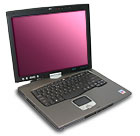
Acer also plans to release an updated version of its Tablet PC during the fourth quarter. Like other Tablet PCs from Acer, the TravelMate C300 is based on Centrino and offers a convertible design that can switch from a notebook to a tablet by rotating the TFT LCD screen and folding it back, flat against the keyboard. The C300 has a 14.1-inch screen, larger than the 10.4-inch screen offered by Acer's C100 and C110 Tablet PCs, which can also be converted from a notebook into a tablet. Acer's other existing Tablet PC model, the 250PE, also has a 14.1-inch screen but it can only be used in a notebook format and does not offer the ability to swivel its screen. The C300 also offers an internal CD-ROM or DVD-ROM drive, a feature that is not available with either the C100 or C110. Pricing for the C300 has not been finalized, but should be about $2000, depending on the configuration, Kan said. (from PC world)
Laptop review
AIPEI -- Acer will introduce two new laptops before the end of this year, including an updated Tablet PC model and a widescreen notebook that is targeted at home users, according to a company executive.
Aimed at home users, the Aspire 2000 laptop is based on Intel's Centrino platform, which includes a Pentium M processor and a wireless LAN chipset, and offers a 15.4-inch widescreen TFT LCD.
The Aspire 2000 offers two modes of operation. In normal PC mode, the computer runs Microsoft's Windows XP operating system. However, users can use the Aspire 2000's instant-on mode, which is based on Linux, to access the laptop's entertainment functions, including DVD playback, said Campbell Kan, chief officer of Acer's notebook product line.
Easier Access
Activating the Linux mode lets users access the Aspire 2000's entertainment functions in approximately 10 seconds, eliminating the requirement for users to boot the PC using Windows XP,
While users may get quicker access to DVD playback functions using the Aspire 2000's Linux mode, the notebook includes software, called ClearVision, which offers higher quality DVD playback in Windows XP,
"If you are watching a DVD on a desktop PC or a notebook, you will see that the brightness, the contrast ratio, is not as good as a TV," Kan said. "ClearVision gives you a better contrast ratio and enhances the DVD, the video appearance in Windows."
While pricing for the Aspire 2000 has yet to be finalized, the notebook will be available worldwide during the fourth quarter for about $2000,Updated Tablet PC
History of laptop

A laptop computer, or simply laptop
(also notebook computer or notebook), is a small mobile computer, which usually weighs 2-18 pounds (1-6 kilograms), depending on size, materials, and other factors.
Laptops usually run on a single main battery or from an external AC/DC adapter which can charge the battery while also supplying power to the computer itself. Many computers also have a 3 volt cell to run the clock and other processes in the event of a power failure.
As personal computers, laptops are capable of the same tasks as a desktop computer, although they are typically less powerful for the same price. They contain components that are similar to their desktop counterparts and perform the same functions, but are miniaturized and optimized for mobile use and efficient power consumption. Laptops usually have liquid crystal displays and most of them use different memory modules for their random access memory (RAM), for instance, SO-DIMM in lieu of the larger DIMMs. In addition to a built-in keyboard, they may utilize a touchpad (also known as a trackpad) or a pointing stick for input, though an external keyboard or mouse can usually be attached
History of Apple laptopHistory of Toshiba

Toshiba Corporation (株式会社東芝 Kabushiki-gaisha Tōshiba ) (TYO: 6502 ) is a Japanese multinational conglomerate manufacturing company, headquartered in Tokyo, Japan. The company's businesses are in high technology, electrical engineering, and electronics fields.
As a chip maker, Toshiba-made Semiconductors are among the Worldwide Top 20 Semiconductor Sales Leaders.
History
Toshiba was founded by the merging of two companies in the year 1939.
One, Tanaka Seizosho (Tanaka Engineering Works), was Japan's first manufacturer of telegraph equipment and was established by Hisashige Tanaka in 1875. In 1904, its name was changed to Shibaura Seisakusho (Shibaura Engineering Works). Through the first part of the 20th century, Shibaura Engineering Works became a major manufacturer of heavy electrical machinery as Japan, modernized during the Meiji Era, and became a world industrial power.
The second company, originally named Hakunetsusha, was established in 1890 and was Japan's first producer of incandescent electric lamps. The company diversified into the manufacture of other consumer products, and in 1899 it was renamed Tokyo Denki (Tokyo Electric).
The merger in 1939 of Shibaura Seisakusho and Tokyo Denki created a new company called Tokyo Shibaura Denki. It was soon nicknamed Toshiba, but it wasn't until 1984 that the company was officially renamed Toshiba Corporation.
The group expanded strongly, both by internal growth and by acquisitions, buying heavy engineering and primary industry firms in the 1940s and 1950s and then spinning off subsidiaries in the 1970s and beyond. Groups created include Toshiba EMI (1960), Toshiba Electrical Equipment (1974), Toshiba Chemical (1974), Toshiba Lighting and Technology (1989), Toshiba America Information Systems (1989) and Toshiba Carrier Corporation (1999).
1942), the TAC digital computer (1954), transistor television and microwave oven (1959), color video phone (1971), Japanese word processor (1978), MRI system (1982), laptop personal computer (1986), NAND EEPROM (1991), DVD (1995), the Libretto sub-notebook personal computer (1996) and HD-DVD (2005).

In 1987, the company was accused of illegally selling CNC milling machines used to produce very quiet submarine propellers to the Soviet Union in violation of the CoCom agreement, an international embargo on Western exports to East Bloc countries. The Toshiba-Kongsberg scandal involved a subsidiary of Toshiba and the Norwegian company Kongsberg Vaapenfabrikk. The incident strained relations between the United States and Japan, and resulted in the arrest and prosecution of two senior executives, as well as the imposition of sanctions on the company by both countries. The US had always relied on the fact that the Soviets had noisy boats, so technology that would make the USSR's submarines harder to detect created a significant threat to America's security. Senator John Heinz, former husband of Teresa Heinz-Kerry, said "What Toshiba and Kongsberg did was ransom the security of the United States for $517 million."
In 2001, Toshiba signed a contract with Orion Electric, one of the world's largest OEM consumer video electronic makers and suppliers, to manufacture and supply finished consumer TV and video products for Toshiba to meet the increasing demand for the North American market.
In December 2004, Toshiba quietly announced it would discontinue manufacturing traditional cathode ray tube (CRT) televisions. In 2006, Toshiba terminated production of plasma TVs. Toshiba quickly switched to Orion as the supplier and maker of Toshiba-branded CRT-based TVs and plasma TVs. However, to ensure its future competitiveness in the flat-panel digital television and display market, Toshiba has made a considerable investment in a new kind of display technology called SED.
Before World War II, Toshiba was a member of the Mitsui Group zaibatsu. Today Toshiba is a member of the Mitsui keiretsu (a set of companies with interlocking business relationships and shareholdings), and still has preferential arrangements with Mitsui Bank and the other members of the keiretsu. Membership in a keiretsu traditionally meant loyalty, both corporate and private, to other members of the keiretsu or allied keiretsu. This loyalty could extend as far as the beer that workers would consume, which in Toshiba's case was Kirin.
In July 2005, BNFL confirmed it planned to sell Westinghouse Electric Company, then estimated to be worth $1.8bn (£1bn)[1]. However the bid attracted interest from several companies including Toshiba, General Electric and Mitsubishi Heavy Industries and when the Financial Times reported on January 23, 2006 that Toshiba had won the bid, it valued the company's offer at $5bn (£2.8bn). The bid surprised many industry experts who questioned the wisdom of selling one of the world's largest producers of nuclear reactors shortly before the market for nuclear power is expected to grow substantially; China, the United States and the United Kingdom are all expected to invest heavily in nuclear power . The acquisition of Westinghouse for $5.4bn was completed on October 17, 2006, with Toshiba obtaining a 77% share, and partners The Shaw Group a 20% share and Ishikawajima-Harima Heavy Industries Co. Ltd. a 3% share
As a chip maker, Toshiba Semiconductors is a major player. During the eighties, it was one the two largest semiconductor companies (with NEC). During the nineties and up to now, Toshiba Semiconductors was almost always among the Top 5. In 2005, Toshiba Semiconductors is number 4, behind Intel, Samsung and Texas Instruments, but before STMicroelectronics.


